

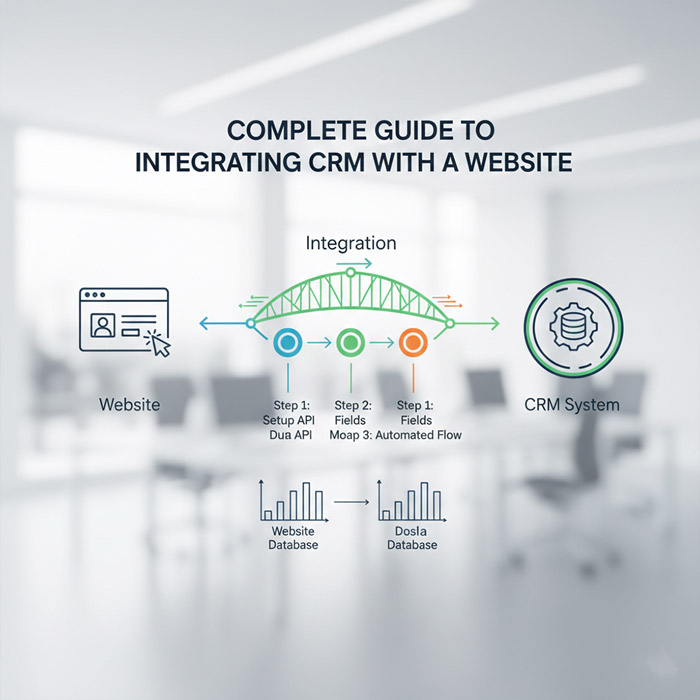
The Complete Guide to CRM and Website Integration
Why Your Website and CRM Shouldn't Be Operating Separately
A website that isn't connected to a CRM is quietly bleeding information. Every form someone fills out, every account they create, every purchase they make — if none of that data is flowing into your CRM, your sales and marketing teams are essentially working with one hand tied behind their back. This is exactly the gap a lot of small teams run into once they start reading up on whether a small business actually needs a CRM in the first place.
Once the two systems are properly connected, everything changes. Customer data gets collected, organized, and put to use automatically, which tends to show up pretty directly in higher conversion rates and a smoother experience for the customer on the other end. This guide walks through what that connection actually looks like in practice — from the data worth syncing to the methods for setting it up and the mistakes worth avoiding along the way.
What Happens When These Two Systems Aren't Talking
When a website and a CRM run independently of each other, the cracks show up fast: leads slip through unnoticed, follow-ups get missed or delayed, someone ends up manually re-entering data that already exists somewhere else, and the reports coming out the other end are never quite accurate.
Connect the two properly, though, and the picture flips. Every form submission turns into a lead automatically. Every purchase gets logged and analyzed without anyone touching a spreadsheet. Behavior on the site gets tracked and stored. And the sales team can actually respond while the lead is still warm, instead of finding out three days later. The net effect is more sales and a lot less room for human error.
What Data Is Actually Worth Syncing
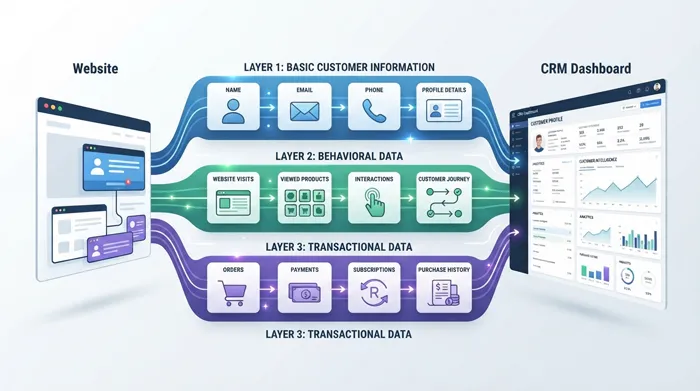
Before setting anything up, it's worth being deliberate about exactly what should move between the two systems. Trying to sync everything usually creates more clutter than clarity, so it helps to think in three layers.
Basic customer details — name, phone number, email, city, and country — form the foundation almost every integration starts with.
Behavioral data — which pages someone visited, how long they stayed, which products they looked at — adds context that raw contact details can't give you on their own.
Transactional data — purchases, order value, payment status, and subscription renewals — is what actually connects customer activity to revenue. This is also where it's worth connecting a payment gateway to your store properly, since payment status is one of the fields most integrations get wrong first.
The more complete this picture is, the more useful the analysis on the other end becomes.
Three Ways to Actually Connect a CRM to Your Site
Direct API Integration
This is the most technically thorough option. A form on your site submits to an API, the CRM receives and stores the data, and a success or error response comes back. It's the method that suits custom-built sites — think Node.js, Laravel, or Django — where you have full control over what's happening behind the scenes.
Webhooks
Webhooks handle the real-time side of things. Someone fills out a form, the site fires off a POST request to the CRM, and a lead appears there almost instantly. It's a simpler setup than a full API integration and, for a lot of use cases, just as effective.
Plugins, for WordPress and Similar Platforms
If your site runs on WordPress, most major CRMs already have plugins built for exactly this — connecting contact forms, syncing WooCommerce orders, or registering new users automatically. This route needs no coding at all, which makes it the practical choice for teams without a developer on hand. If you're weighing your options before committing to one system, this comparison of CRM tools across platforms is worth reading before you pick.
Setting It Up, Step by Step
1. Map Out Your Data Structure First
Before touching any settings, get clear on what fields actually exist on your site, what fields your CRM already has, and whether you'll need to create custom ones to bridge the gap. Getting this part sloppy early tends to cause headaches later.
2. Design the Field Mapping
This is where you decide exactly how each field lines up — does the site's "phone" field map to the CRM's phone field, or something else entirely? Does a "budget" field become a sales opportunity, or just sit as a lead property? Get this mapping wrong and your data ends up scattered in places nobody thinks to check.
3. Build the Actual Connection
From here it's implementation: setting the API key, defining the webhook URL, wiring up your forms, and running test submissions to make sure everything lands where it should. Keep an eye on your error logs during this stage — they'll tell you almost immediately if something's misconfigured.
4. Test It Properly Before You Trust It
Run through the real scenarios: a fresh form submission, a completed purchase, a failed one, a new user signing up, and someone accidentally submitting the same form twice. If all of those come through clean, the integration is doing its job.
Syncing Both Ways, Not Just One
A well-built integration doesn't just push data from the site to the CRM — it works in both directions. Order status, payment confirmation, a customer's account tier, and loyalty points earned can all flow back from the CRM to the site, which is what makes the customer's experience feel joined-up instead of disconnected. Once that two-way flow is in place, it's also a lot easier to start reading CRM reports for smarter decisions, since the numbers actually reflect what's happening on both ends.
What Automation Unlocks Once Everything's Connected
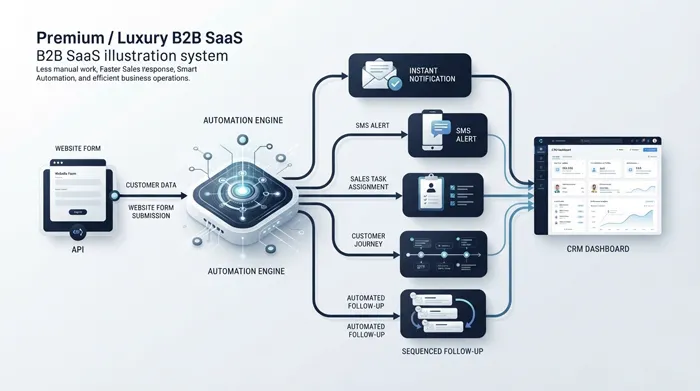
Once the systems are talking to each other, automation becomes genuinely useful instead of theoretical. An SMS can go out the moment someone submits a form — a tactic covered in more depth in this guide to SMS marketing for online stores. A welcome email can fire automatically. Leads can get assigned to the right sales rep without anyone lifting a finger, and follow-up tasks can be created on their own. This is usually the point where a CRM stops feeling like a database and starts actually running part of the business — the same idea behind how marketing automation ties into a connected website in the first place.
The Problems That Tend to Show Up
Duplicate records. This is the most common complaint, and the fix is straightforward: use a unique identifier, like a phone number or email address, so the system recognizes a returning contact instead of creating a second one.
Mismatched data structures. Usually traced back to sloppy field mapping early on — worth revisiting if data starts looking inconsistent.
API errors. These are far less painful if you've set up proper logging and a retry system from the start, rather than discovering failures after the fact.
Security gaps. HTTPS, IP restrictions, and secure tokens aren't optional extras here — they're the baseline for handling customer data responsibly.
Keeping the Data Secure Once It's Flowing
Customer data carries real weight, so a few habits are worth locking in from day one: never expose API keys on the frontend, put rate limiting in place, keep logs of what's happening, and restrict who inside the CRM can actually see or edit sensitive records. None of this is glamorous work, but it's the difference between an integration you can trust and one that eventually causes a problem.
What You Actually Get Once It's Done Right
A properly connected CRM and website tends to show up in a handful of concrete ways: better conversion rates, fewer manual mistakes, faster response times to new leads, a much clearer picture of how customers actually behave, more sales overall, and a noticeably smoother experience for the customer. It's worth treating as an investment rather than an expense — the kind of upgrade that pays for itself once it's live, in the same way simplifying order management tends to once a business stops handling everything by hand.
Bringing It All Together
Connecting your CRM to your website is one of the more practical steps toward running a genuinely professional online operation. Skip it, and a lot of valuable customer information simply goes to waste. Get the data structure right, build a secure connection, sync in both directions, and layer in automation on top — and what you end up with is a sales process that's actually driven by data instead of guesswork.